
3 de February de 2026
New in Vitruve Hub: Less Setup, More Coaching

We keep shipping with one goal: give coaches time back. These updates cut friction in setup, clean-up execution, and make it easier to share what matters fast.
Here’s what’s new in Vitruve Hub.
1) Builder Prescriptions Now Control Encoder Settings
Program it once. Run it exactly as intended.
What’s new:
- Workout-level personalization: The prescription set in the program now overrides the encoder’s Primary Metric when the session runs, so you’re not stuck with a team-wide encoder setting that accidentally applies to everyone.
- You can now change encoder prescriptions directly from Builder
Instead of adjusting settings on the fly, you can set the prescription where it should live: inside the program. More consistency, fewer last-second fixes. - Prescribe by training type (MV, MPV, or PV): You can now prescribe based on the intent of the session, so the session runs with the metric that actually matches the stimulus you’re coaching.
How does this help coaches?
With this update:
- You individualize by athlete without battling global settings
- You avoid last-second changes and “wrong metric” sessions
- Execution matches your plan every time
Now you can coach groups without “one-size-fits-all” settings. Builder prescriptions make it easy to match the right metric to the right athlete.
How you’ll use it
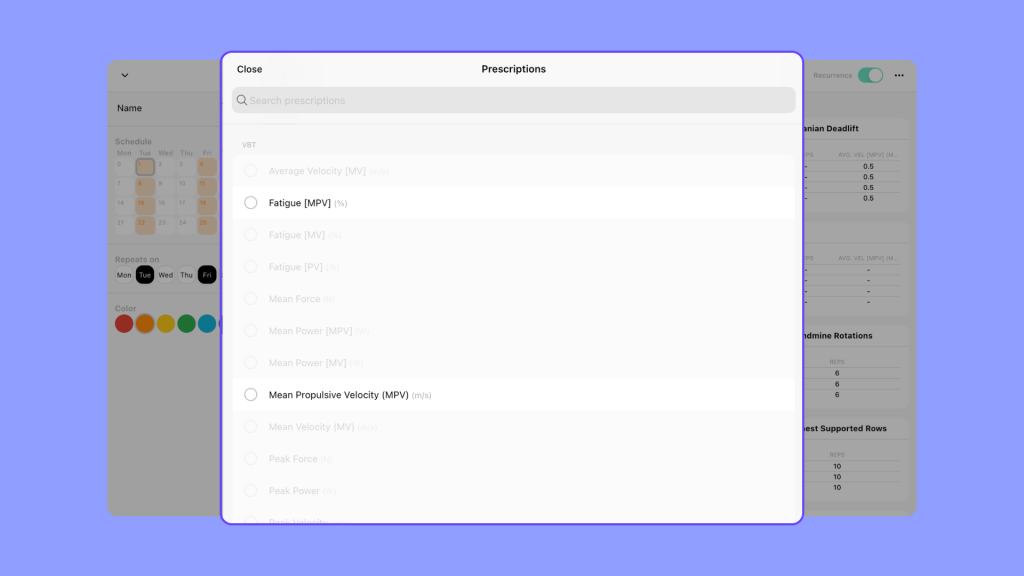
- Build the program in Vitruve Builder
- Set your prescription
- Publish the workout
- Run the session, Vitruve loads the primary metric from the program automatically
2) New “Finish All” Option in Coach Live
End sessions in one tap.
Coach Live now includes Finish all, so you can close everything at once instead of finishing athletes, sets, or exercises one by one.
How does this help coaches?
- Saves time when managing large groups
- Reduces unfinished items that clutter reporting
- Helps sessions end cleanly and consistently
How you’ll use it
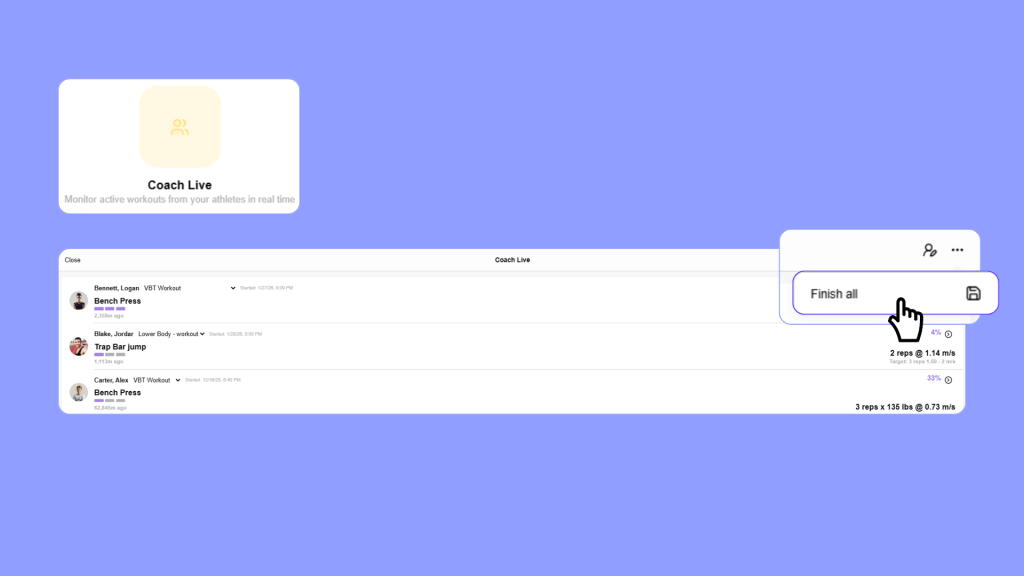
- Enter Coach Live during a session
- Tap the three dots (top right)
- Select Finish all
- Confirm to finalize anything still in progress
3) Export TeamSight Reports as PDF
Share performance insights anywhere.
You can now export TeamSight views as a PDF, making it easy to share insights with staff, athletes, and leadership
Why it matters for coaches
- Clean reporting for meetings, travel, and stakeholder updates
- Share insights without platform access
- Better documentation for internal workflows
How you’ll use it
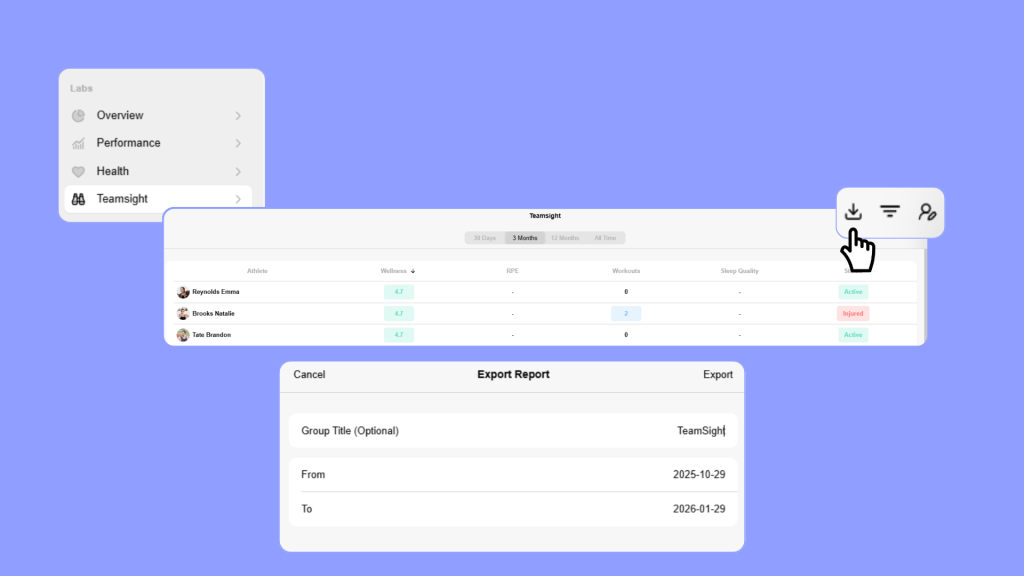
- Open TeamSight
- Select athletes
- Set time frame
- Top right: Export
- Download the PDF (includes everything shown in TeamSight)
- You’ll also receive an email with the report
4) Multi-Import Athletes via Email
Onboard teams in minutes.
You can now add multiple athletes at once using email-based import.
How does this help coaches?
- Faster onboarding for new teams and seasons
- Less admin work
- Fewer clicks before you can start coaching
How you’ll use it
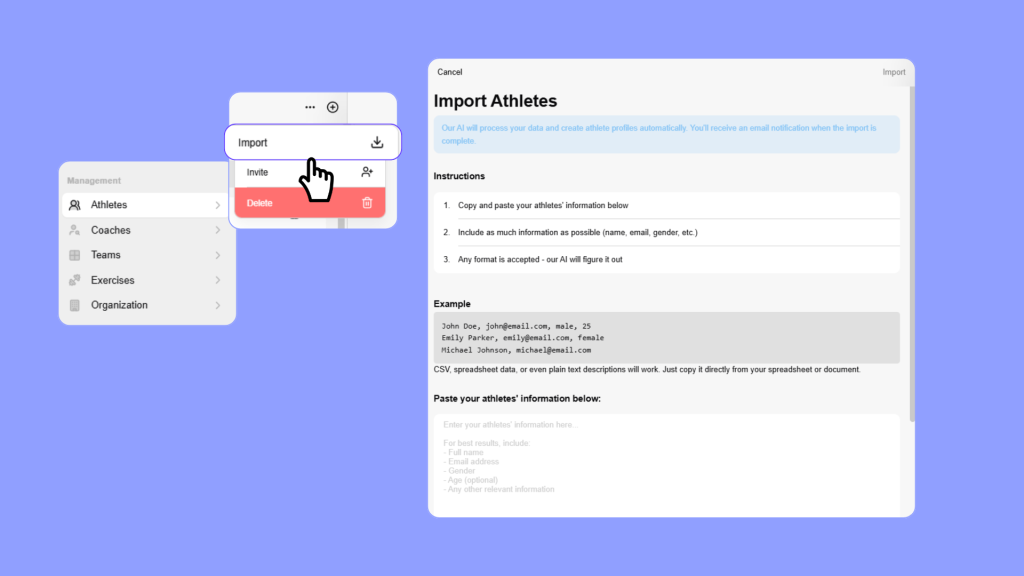
- Hub → Management → Athletes → + (top right)
- Paste a list of athlete emails
- Send invites
5) New Medical Reports Section
Keep training constraints visible, where coaching happens.
Vitruve Hub now includes a Medical Reports section so coaches can document and reference athlete medical notes/status inside the platform.
Why it matters for coaches
- Better coordination across S&C, sport coaches, physios/ATC
- Safer training decisions (constraints aren’t buried in messages)
- Cleaner history for RTP and training modifications
How you can use it
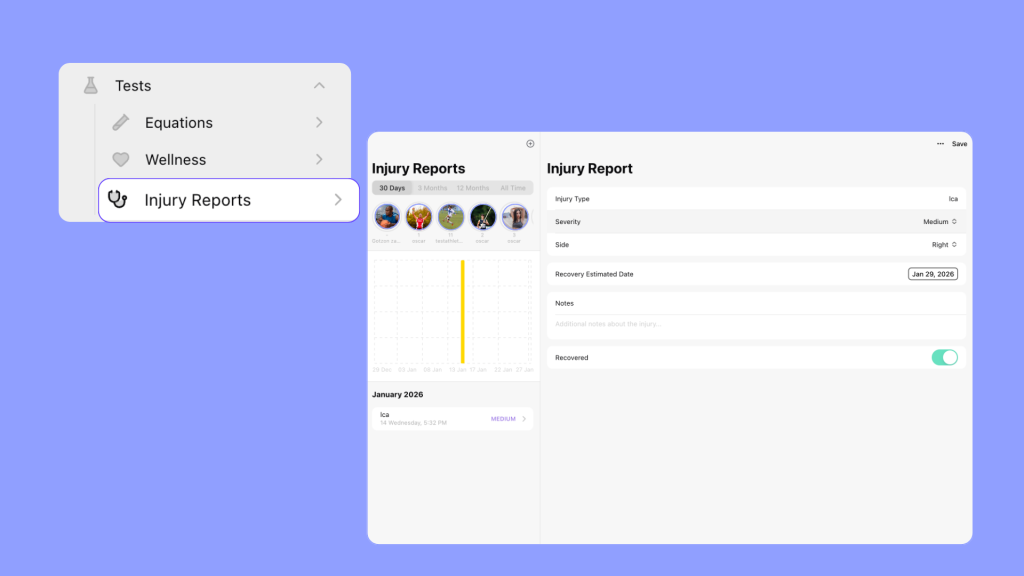
- General → inside the Test section → Medical Reports
- Select athlete
- Top right: add/update medical report info
- Only users with coach access can add or update reports
6) New Vitruve Chat
Keep communication where it matters.
Vitruve Hub now has a built-in chat to keep your communication centralized, without bouncing between external apps.
Why it matters
- Fewer missed messages and less context switching
- Easier staff coordination around sessions and athletes
- Conversations stay tied to day-to-day training decisions
How you’ll use it
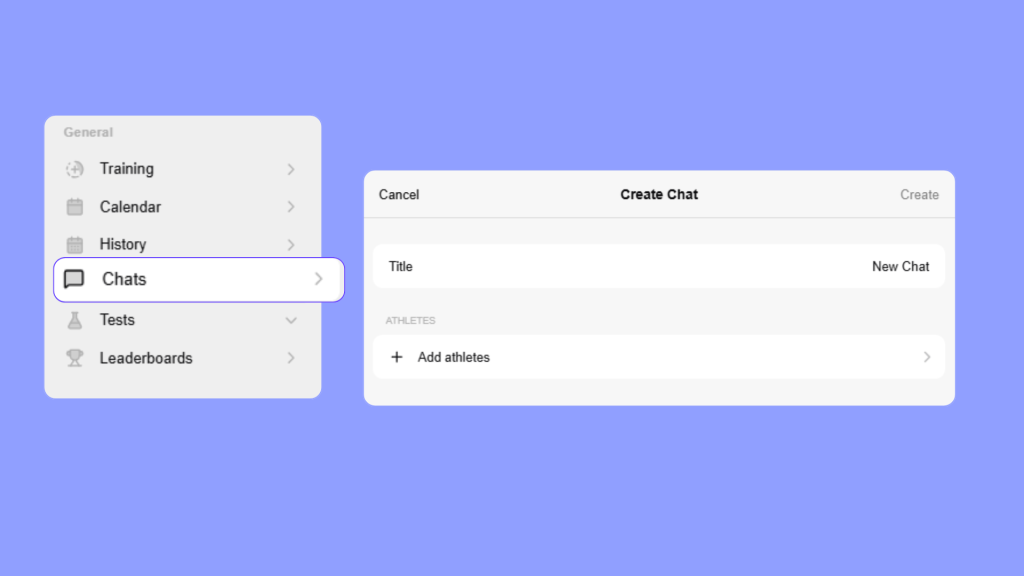
- Hub: General → Chat (between History and Tests)
- Click Chat
- Click + (top right) to create a chat
- Select participants, name the chat, and start messaging (1:1 or group)
- Share updates: session changes, athlete notes, logistics
- Add files from the right corner of the chat
Note: Chats can only be created by coaches, and chat is available on mobile.